Getting to know Tabular Editor 3's User Interface
This article describes the user interface of Tabular Editor 3.
Basic user interface elements
With a semantic model loaded, Tabular Editor 3 shows the default layout below.
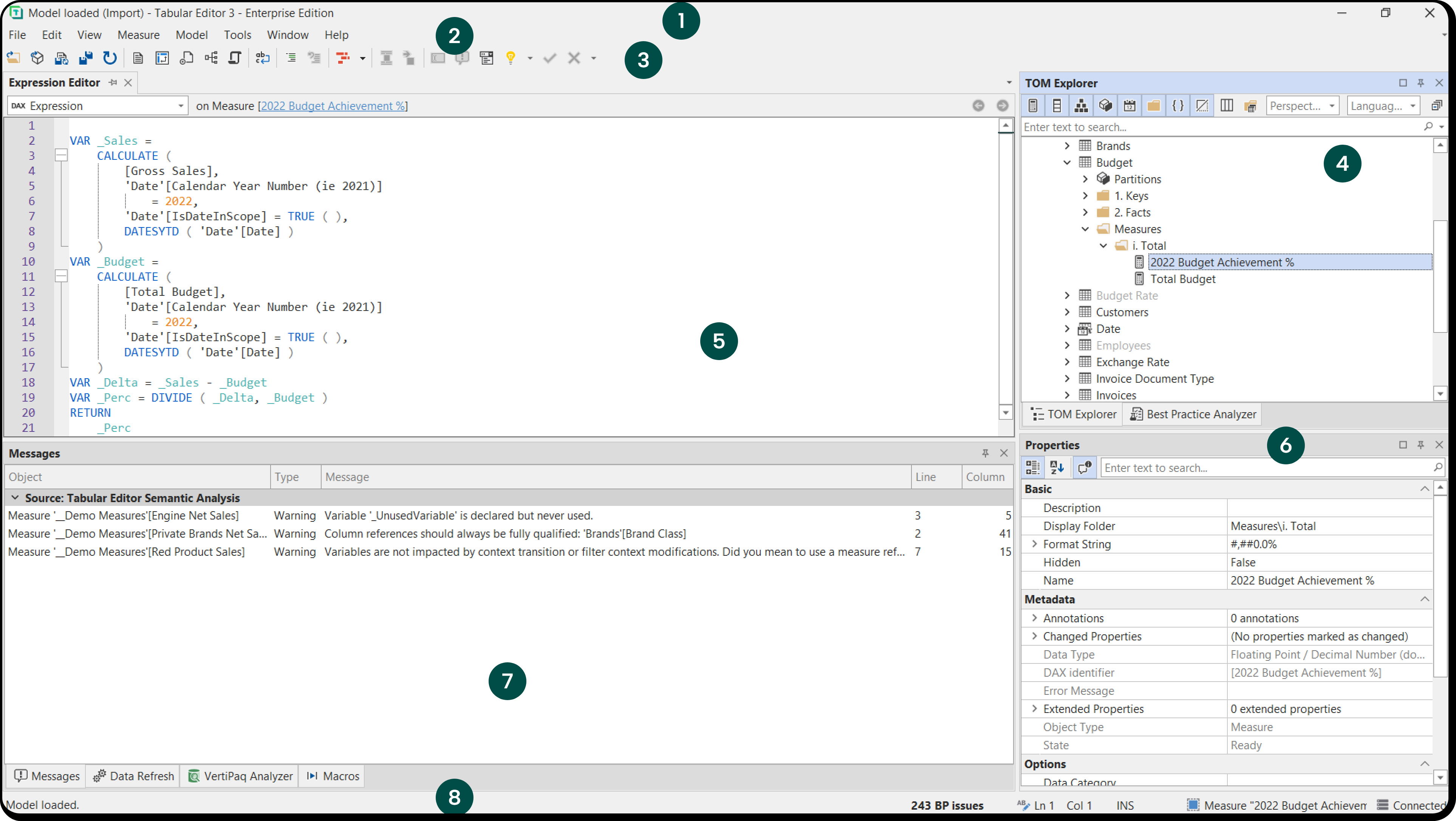
- Title bar: This shows the name or the currently loaded file and Analysis Services database or Power BI dataset if connected.
- Menu bar: The menu bar provides access to all of the various features of Tabular Editor 3. See Menus for a detailed walkthrough of all menu items.
- Toolbars: The toolbars provide quick access to the most commonly used features. All features accessible through the toolbar can also be accessed through the menus. You may customize the toolbars and their buttons under Tools > Customize...
- TOM Explorer view: A hierarchical view of your data model, with all objects available . of the metadata from the Tabular Object Model (TOM) metadata that represents your data model. The toggle buttons at the top allow you to filter which objects are displayed. The search box allows you to filter objects by names.
- Expression Editor: The expression editor provides a quick way to edit any DAX, SQL or M expressions of the currently selected object in the TOM Explorer. If you close the expression editor, you can bring it back up by double-clicking on an object in the TOM Explorer. The dropdown at the top allows you to switch between different expression properties, in case the currently selected object has more than one such property (for example, KPIs have Target Expressions, Status Expressions and Trend Expressions, which are 3 different DAX expressions belonging to the same KPI object).
- Properties view: A detailed view of all TOM properties available on the currently selected object(s) in the TOM Explorer. Most properties can be edited through the grid, even when multiple objects are selected. Some properties (such as "Format String", "Connection String", "Role Members") have popup dialogs or collection editors that can be brought up by clicking on the ellipsis button within the property value cell.
- Messages view: Tabular Editor 3 continuously analyzes the DAX expressions on your model for semantic errors. Any such errors are outputted here. In addition, messages shown in this view, can originate from C# scripts or from error messages reported by Analysis Services.
- Status bar: The status bar provides various contextual information about the current selection, Best Practice Analyzer findings, etc. When the MCP server is available, an indicator at the right-hand end reads MCP Started or MCP Stopped, with the address the server is listening on in its tooltip. Click it to open the MCP Server dialog, or right-click it to start and stop the server, copy a registration configuration for your agent or jump to the preferences page.
The View menu opens the other views.
Customizing the user interface
You can resize and rearrange all UI elements, and drag views out of the main window, for example onto another monitor. Tabular Editor 3 saves the layout when you close the application and restores it at the next launch.
Choosing a different layout
Choose Window > Default layout to reset the application to the default layout, or Window > Classic layout to place the TOM Explorer on the left and the Properties view below the Expression Editor, as in Tabular Editor 2.x.
To switch between your own layouts, save the current one with Window > Capture Layout, and it becomes an option in the Window menu. Window > Layouts... lists all layouts, where you apply, load, remove and save them. A layout saved to disk is an .xml file that you can share with other Tabular Editor 3 users.
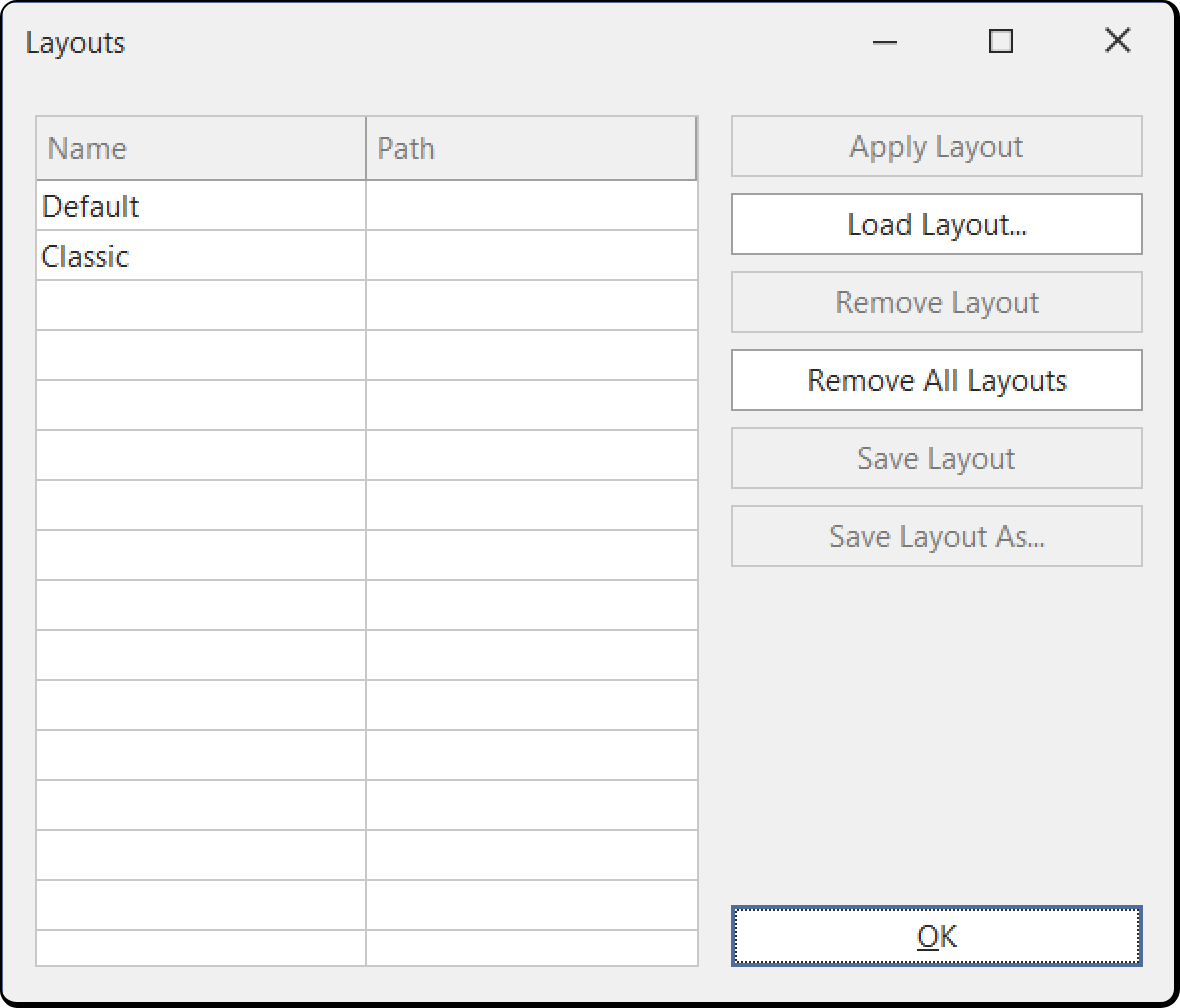
Window docking options
When you drag a view or document, docking indicators show where you can dock it.
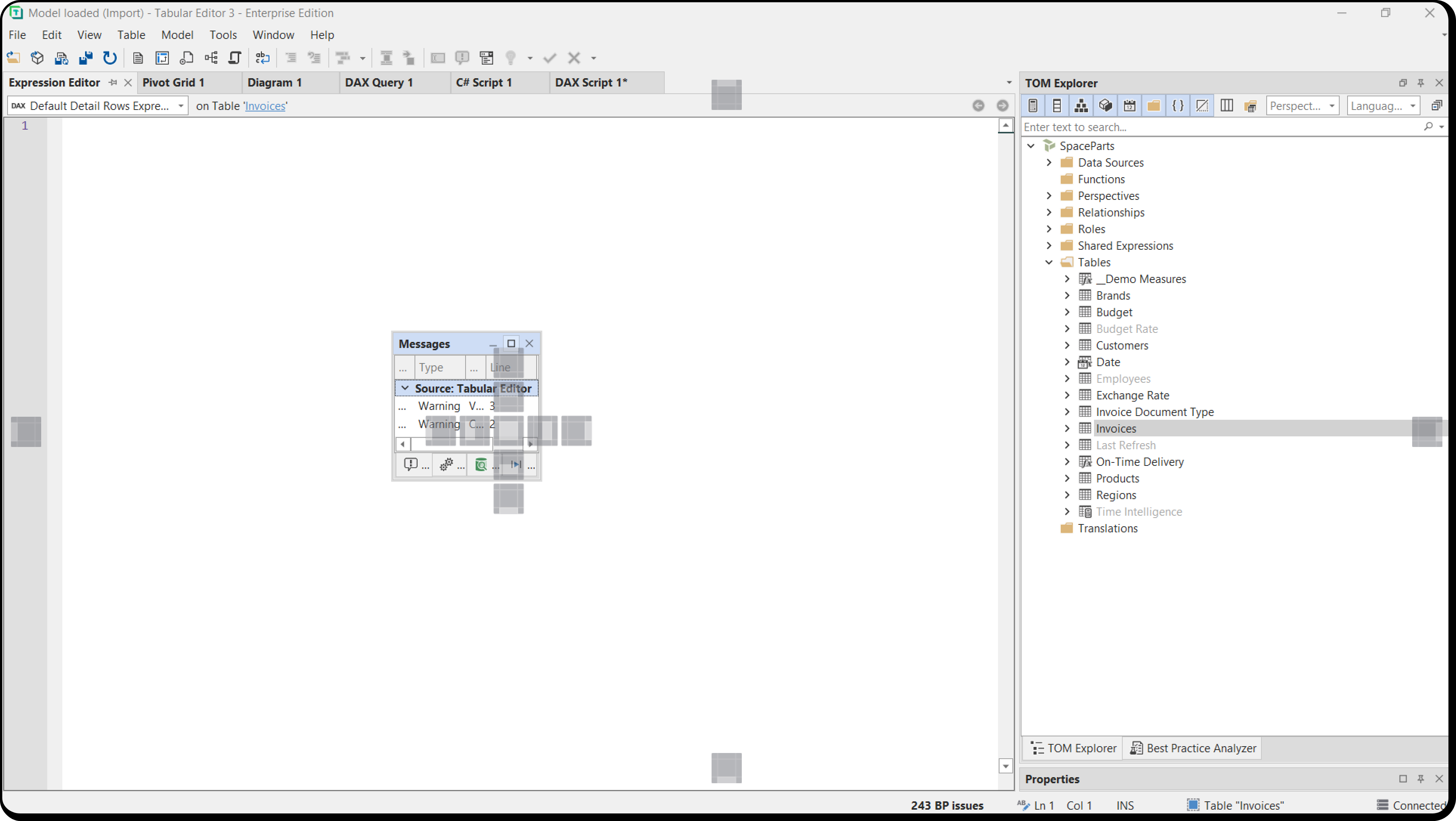
Where you drop the window decides how it behaves:
Document tab docking (center indicator): a window dropped on the center indicator becomes a document tab in the main document area, next to documents such as DAX queries, scripts and diagrams. Document tabs:
- are included when you cycle with Ctrl+Tab
- have no auto-hide
Tool window docking (edge indicators): a window dropped on the left, right, top or bottom indicator is docked as a tool window, like the TOM Explorer and the Messages view. Tool windows:
- aren't included in Ctrl+Tab
- have a pin icon that turns on auto-hide, which collapses the window when it isn't in use
- dock at any side of the main document area
Tip
The size of a docked window depends on the space available where you dock it, and you resize it by dragging the dividers between windows.
Changing themes and palettes
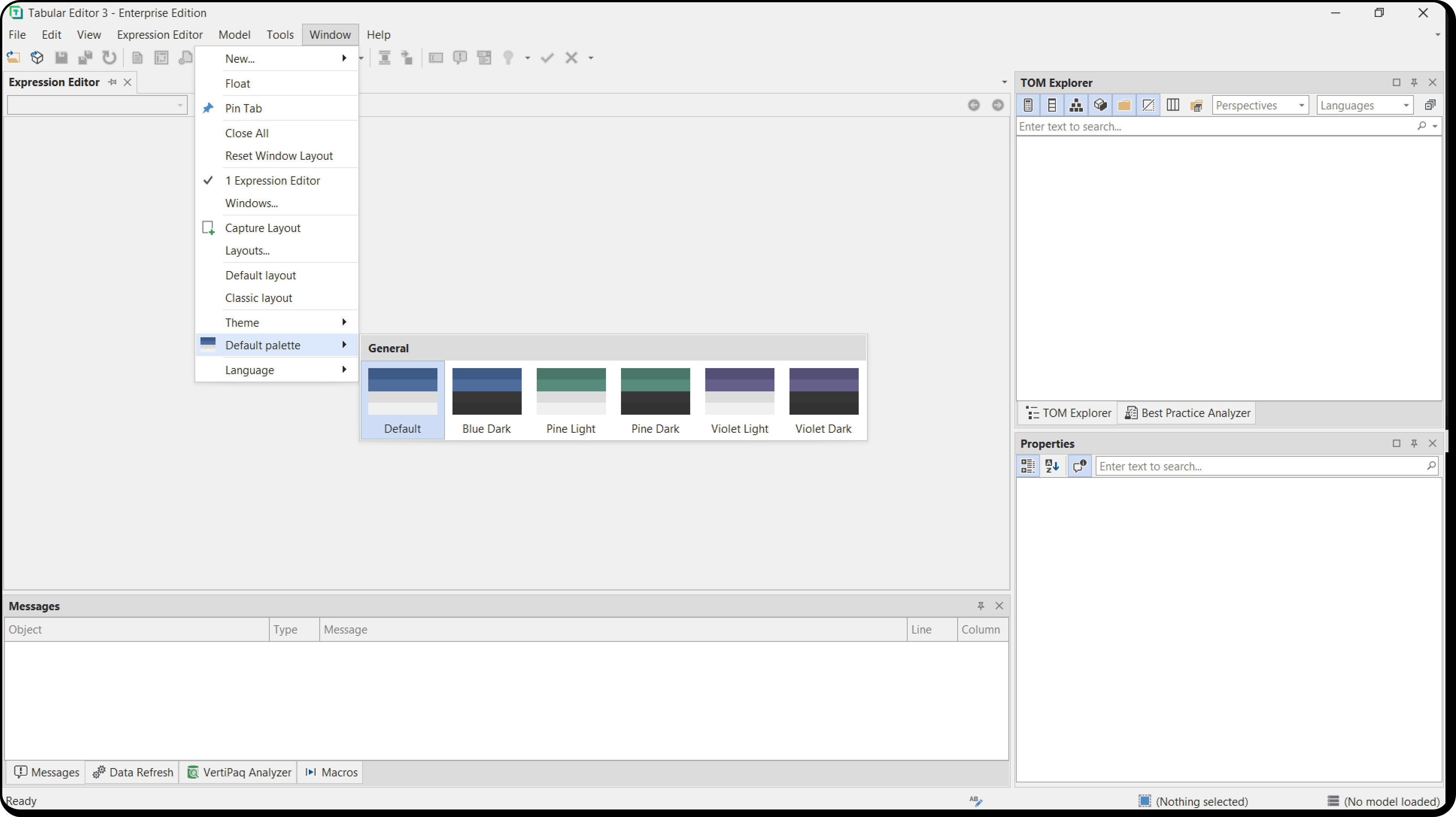
Choose a theme under Window > Theme:
- Basic and Bezier are vector-based and scale on high-DPI displays.
- Blue, Dark and Light are raster-based and don't scale well on high-DPI displays.
For Basic and Bezier, Window > Default palette changes the theme's colors.
Menus
This section describes each menu.
The active document is the document that has the cursor, such as the Expression Editor or the "DAX Script 1" tab in the screenshot below. Some shortcuts and menu items depend on whether a document is active, and on its type.
Note
Menus and toolbars are locked in place by default. To unlock them, clear Lock menus and toolbars under Tools > Customize... > Options.

File
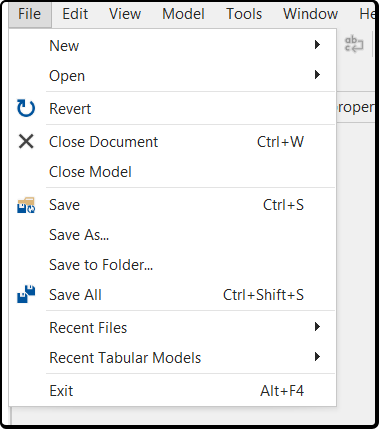
The File menu loads and saves model metadata, supporting files and documents.
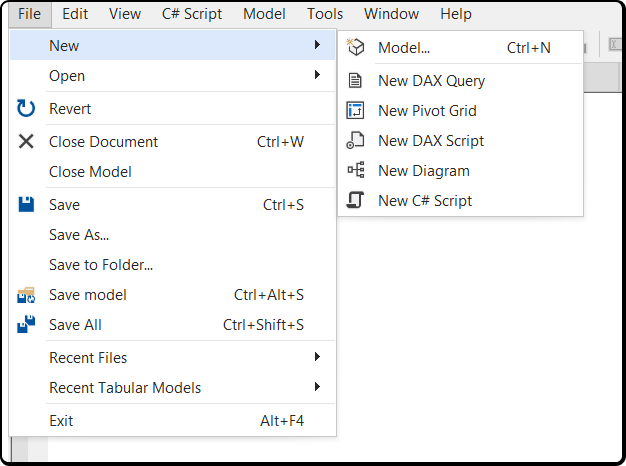
New: creates a new blank model (Ctrl+N), or a supporting file such as a DAX query, a DAX script (text files) or a diagram (JSON file). Supporting files other than C# scripts require a loaded model.
Important
New > Model... isn't available in Tabular Editor 3 Desktop Edition, which works only as an External Tool for Power BI Desktop. See Compare editions.
Open: loads a model from one of these sources, or opens any other supported file:
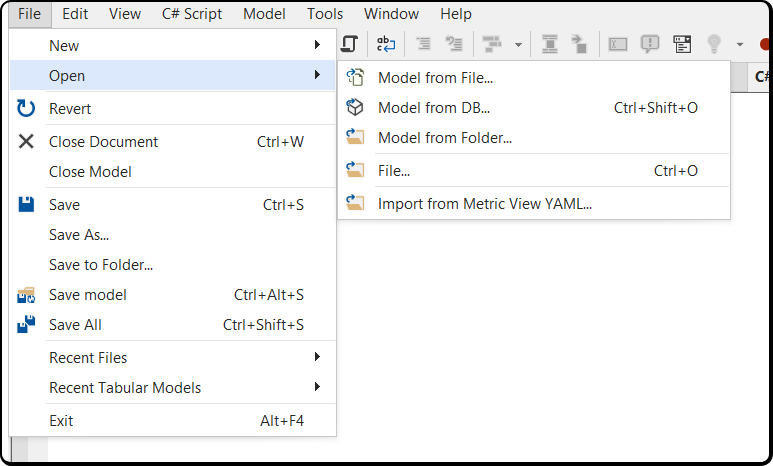
Model from file... opens model metadata from a file such as a .bim or .pbit file.
Model from DB... loads the metadata of a deployed model. Enter Analysis Services or Power BI XMLA connection details, or connect to a local instance such as Visual Studio's Integrated Workspace server or Power BI Desktop.
Model from folder... opens model metadata from a folder structure saved by any version of Tabular Editor.
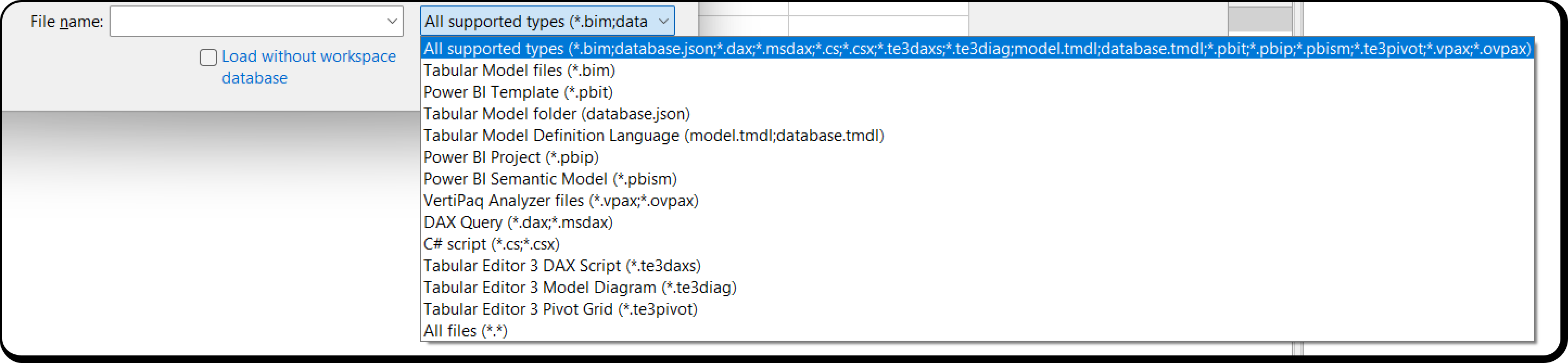
File... opens any file type Tabular Editor 3 supports, by file name extension. See Supported file types.
Import from Metric View YAML... imports model metadata from a Databricks Metric View YAML file.
Important
In Tabular Editor 3 Desktop Edition, Open > Model from file... and Open > Model from folder... aren't available, and Open > File... opens only supporting files.
- Reload from disk / Reload from server: reloads the model metadata from its source and discards all unsaved changes. The command reads Reload from disk for a model loaded from a file or folder, and Reload from server for a model opened from Analysis Services or Power BI. If Tabular Editor 3 runs as an External Tool for Power BI Desktop and the model changes in Power BI Desktop, use this command to reload the model metadata without reconnecting. Models loaded from a file or folder reload automatically when the files change. See Auto-reload from disk.
- Close Document (Ctrl+W): closes the active document or panel in the main area, such as a DAX query, a C# script or a diagram. If the document has unsaved changes, a prompt to save them appears.
- Close model: unloads the model metadata. If you changed the metadata, a prompt to save the changes appears.
- Save: saves the active document to its source file. If no document is active, it saves the model metadata to its source: a Model.bim file, a Database.json folder structure, an Analysis Services instance (including Power BI Desktop) or the Power BI XMLA endpoint.
- Save as... saves the active document as a new file. If no document is active, it saves the model metadata as a new .bim (JSON) file.
- Save to folder... saves the model metadata as a folder structure.
- Save all: saves all unsaved documents and the model metadata.
- Recent files: lists recently used supporting files.
- Recent tabular models: lists recently used model metadata files and folders.
Important
In Tabular Editor 3 Desktop Edition, Save to folder and Recent tabular models are disabled, and Save as is enabled only for supporting files.
- Exit: closes Tabular Editor 3. A prompt to save unsaved files or model metadata appears first.
Edit
The Edit menu edits the active document or the loaded model metadata.
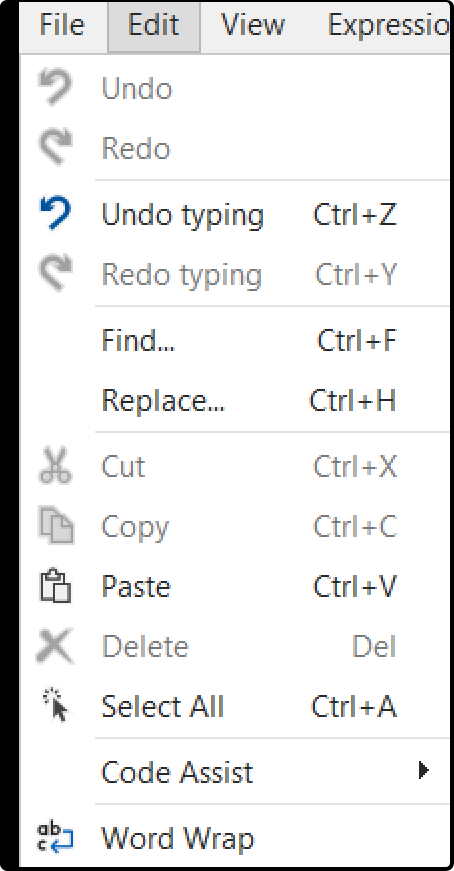
- Undo: undoes the last change in the part of the window that has focus. In a text control, such as a document or the Expression Editor, it undoes typing and reads Undo typing. Elsewhere, it undoes the last change to the model metadata. Ctrl+Z runs this command.
- Redo: redoes the last undone change, following the same rules as Undo. Ctrl+Y runs this command.
- Undo / Redo followed by the name of a model change, for example Undo C# script (MCP): appear only when a text control has focus, and undo or redo the last change to the model metadata. See Undo in text editors.
- Find: opens the "Find and replace" dialog on the "Find" tab. See Find.
- Replace: opens the "Find and replace" dialog on the "Replace" tab. See Replace.
- Cut / Copy / Paste: when a text control has focus, these apply to the selected text. When the TOM Explorer has focus, they apply to the selected objects. For example, to duplicate several measures, select them with Shift or Ctrl in the TOM Explorer and press Ctrl+C, then Ctrl+V.
- Delete: deletes the selected text when a text control has focus, or the selected objects when the TOM Explorer has focus.
Note
A deletion prompt appears only when several objects are selected, or when other objects depend on the ones you delete. Undo (Ctrl+Z) restores deleted objects.
- Select all: selects all text in the active document, or all objects with the same parent in the TOM Explorer.
- Code assist: shortcuts to the code assist features for DAX. Available while you edit DAX. See DAX editor.
- Word Wrap: toggles word wrap in the active text document.
View
The View menu opens and focuses the views of Tabular Editor 3, including hidden ones. Documents aren't listed; switch between them with the Window menu.
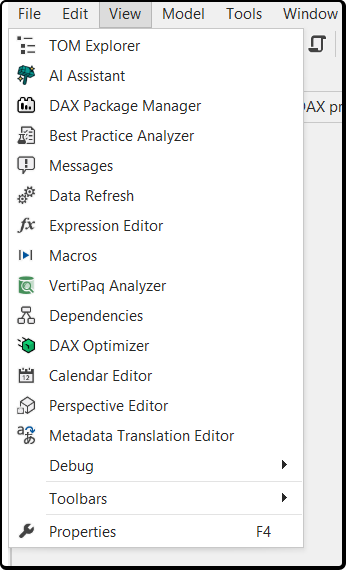
- TOM Explorer: The TOM Explorer presents a hierarchical view of the entire Tabular Object Model (TOM) of the currently loaded model metadata. See TOM Explorer view for more information.
- AI Assistant: The AI Assistant view lets you interact with an AI assistant that can help you with modeling tasks.
- DAX Package Manager: The DAX Package Manager view lets you browse and install DAX user-defined function packages into your model.
- Best Practice Analyzer: The Best Practice Analyzer helps improve the quality of your model by letting you specify rules for best practice validation. See Best Practice Analyzer view for more information.
- Messages: The Messages view displays errors, warnings and informational messages from various sources, such as the Tabular Editor 3 Semantic Analyzer. See Messages view for more information.
- Data Refresh: The Data Refresh view allows you to track data refresh operations that are running in the background. See Data Refresh view for more information.
- Expression Editor: This is the "quick editor" that lets you edit DAX, M or SQL expressions on whichever object is currently selected in the TOM Explorer. See DAX Editor for more information.
- Macros: The Macros view allows you to manage any macros you have created. Macros can be created from C# Scripts. See Creating macros for more information.
- VertiPaq Analyzer: The VertiPaq Analyzer view allows you to collect, import and export detailed statistics about the data in your model, to help improve and debug DAX performance. VertiPaq Analyzer is created and maintained by Marco Russo of SQLBI under MIT license. More information on the GitHub project page.
- Dependencies: The DAX Dependencies view visualizes dependencies between the currently selected object and other objects in the model. Tick Track TOM Explorer to have it follow the tree selection.
- DAX Optimizer: The DAX Optimizer view integrates with DAX Optimizer to analyze your model for DAX performance issues.
- Calendar Editor: The Calendar Editor view lets you define and manage calendars in models using the modern time intelligence feature.
- Perspective Editor: The Perspective Editor view provides a matrix overview of which objects are included in each perspective of the model.
- Metadata Translation Editor: The Metadata Translation Editor view provides a grid for editing metadata translations (cultures) of model objects.
- Toolbars / Properties: The remaining items let you toggle the visibility of toolbars and bring up the Properties view (F4).
Model
The Model menu displays actions that can be performed at the level of the Model object (the root object of the TOM Explorer).
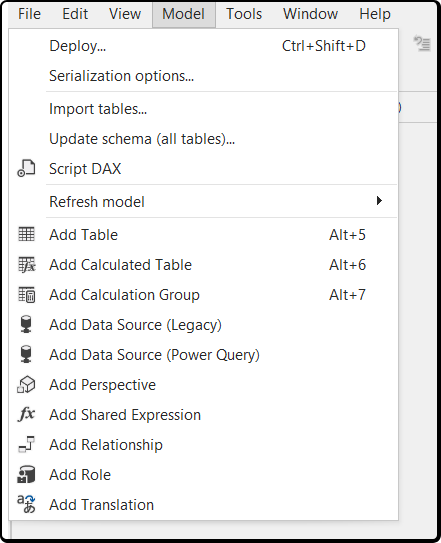
- Deploy...: opens the Tabular Editor Deployment wizard. See Model deployment.
Important
The Deploy option is not available in Tabular Editor 3 Desktop Edition. For more information see Compare editions.
- Serialization options... Lets you configure how model metadata is serialized when saving to disk (file or folder structure).
- Import tables... Launches the Tabular Editor 3 Import Table Wizard. For more information, see Importing Tables.
- Update schema (all tables)... Detects schema changes in the data source(s) for all tables of the model compared to the currently imported columns. See Updating table schema for more information.
- Script DAX: Generates a DAX script for the currently selected object(s) (or all DAX objects in the model, if nothing is selected). See DAX Scripts for more information.
- Refresh model: When Tabular Editor is connected to an instance of Analysis Services, this submenu contains options for starting a background refresh operation at the model level. The submenu has the options below. For more information, see Refresh command (TMSL).
- Automatic (model): Analysis Services determines which objects to refresh (only objects that are not in the "Ready" state).
- Full refresh (model): Analysis Services performs a full refresh of the model.
- Calculate (model): Analysis Services recalculates all calculated tables, calculated columns, calculation groups and relationships. No data is read from the data sources.
- Add [object type]: the remaining items create model child objects, such as tables, data sources and perspectives.
Tools
The Tools menu has the Tabular Editor 3 preferences and customizations.
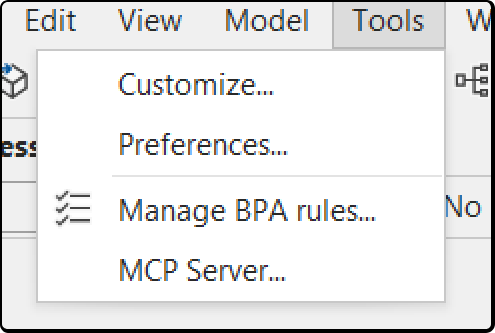
- Customize... opens the User Interface Layout customization dialog, where you create toolbars and rearrange and edit menus and toolbar buttons.
- Preferences... opens the Preferences dialog, with settings such as update checks, proxy settings, query row limits and request timeouts. See Controlling preferences.
- Manage BPA rules... opens the Best Practice Analyzer rule manager, where you view and edit rules and rule collections. See Best Practice Analyzer view.
- MCP Server... opens the MCP Server dialog, where you start and stop the server that lets an external AI agent work on the open model, review the permissions the agent gets and copy a registration configuration for your agent. See MCP server. The item is hidden when the AI features component isn't installed, when Enable MCP Server is cleared or when an administrator has disabled it by policy.
Window
The Window menu manages and switches between the views and documents of the application, together called windows, and also has the theme and palette settings.
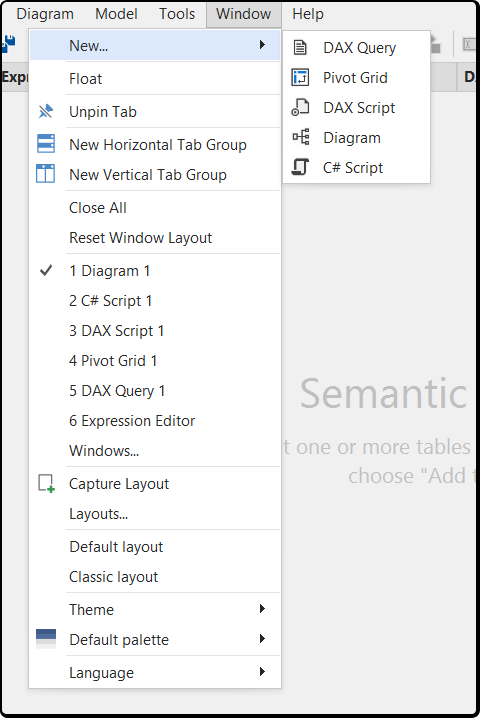
New... creates supporting files. The options are the same as under File > New.
Float undocks the current view or document into a floating window.
Pin tab pins a tab to the left end of the document tabs. The tab right-click menu has commands that close only unpinned tabs.
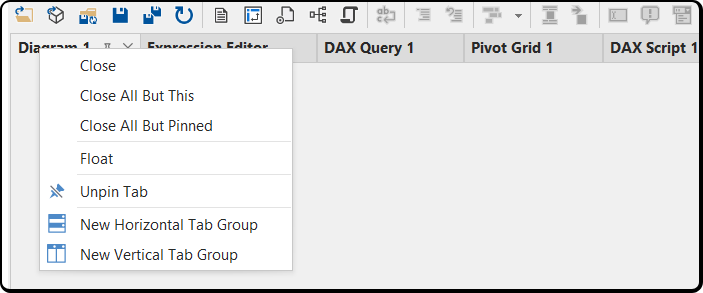
New Horizontal/Vertical Tab Group: divides the main document area into tab groups, to show several documents side by side or one above the other.
Close All: closes all document tabs. A prompt to save unsaved changes appears first.
Reset Window Layout: resets all customization of the main document area.
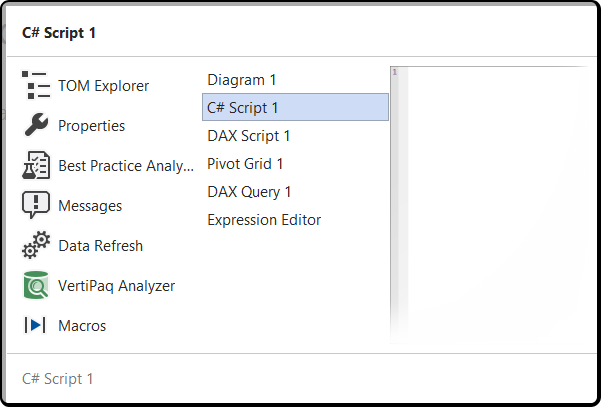
1..N [document]: the first 10 open documents. Ctrl+Tab also switches between open documents and views:
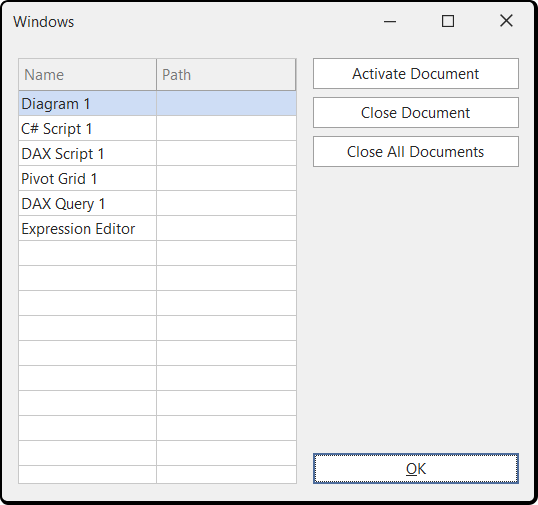
Windows...: opens a dialog that lists all open documents, where you switch to or close each one.
Capture Layout / Layouts... / Default layout / Classic layout: see Choosing a different layout.
Theme / Default palette: see Changing themes and palettes.
Language: changes the display language of the Tabular Editor 3 user interface.
Help
The Help menu links to online resources.
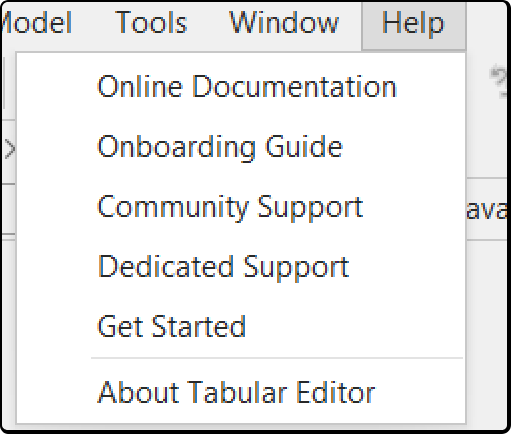
- Online Documentation: opens docs.tabulareditor.com in your default web browser.
- Onboarding Guide: opens the Tabular Editor 3 onboarding guide for new users.
- Community Support: opens the public community support site.
- Dedicated Support: sends an e-mail to the dedicated support hotline.
- Get Started: opens the Get Started page, which collects courses, demos and documentation for Tabular Editor. Before Tabular Editor 3.27.0, this item was called What's New. For release notes, see Full release history.
Note
Dedicated support is for Tabular Editor 3 Enterprise Edition customers. Other customers use the public community support site for technical and product questions.
- About Tabular Editor: shows the version, installation and licensing details, and lets you change your license key.
Dynamic menus (context dependent)
Extra menus appear depending on which UI element has focus and which object is selected in the TOM Explorer. For example, if you select a table, a Table menu appears with the same items as the table's right-click menu in the TOM Explorer.
Each document type, such as DAX queries, Pivot Grids and diagrams, also adds a menu while a document of that type has focus. For example, a focused diagram adds a Diagram menu with an item for adding tables to the diagram.
Set the behavior of these dynamic menus under Tools > Preferences > Tabular Editor > User Interface.